AI has made it easier than ever to create artwork for your business. Whether you're designing stickers, flyers or posters, tools like ChatGPT and Canva can help turn an idea into artwork in minutes.
The catch? Just because it looks great on your screen doesn't always mean it'll look great in print.
The good news is that with a few simple tweaks, you can get much better results. In this guide, we'll show you how to write better prompts, improve image quality and get your AI artwork ready for print.
Table of Contents
Why AI Artwork Doesn't Always Print Well
Start With a Better Prompt
Using Canva AI
How to Improve AI Image Resolution/a>
Preparing AI Artwork for Print
Common AI Mistakes We See Before Printing
Final Tips
Why AI Artwork Doesn't Always Print Well
AI image generators are built for screens first, not print.
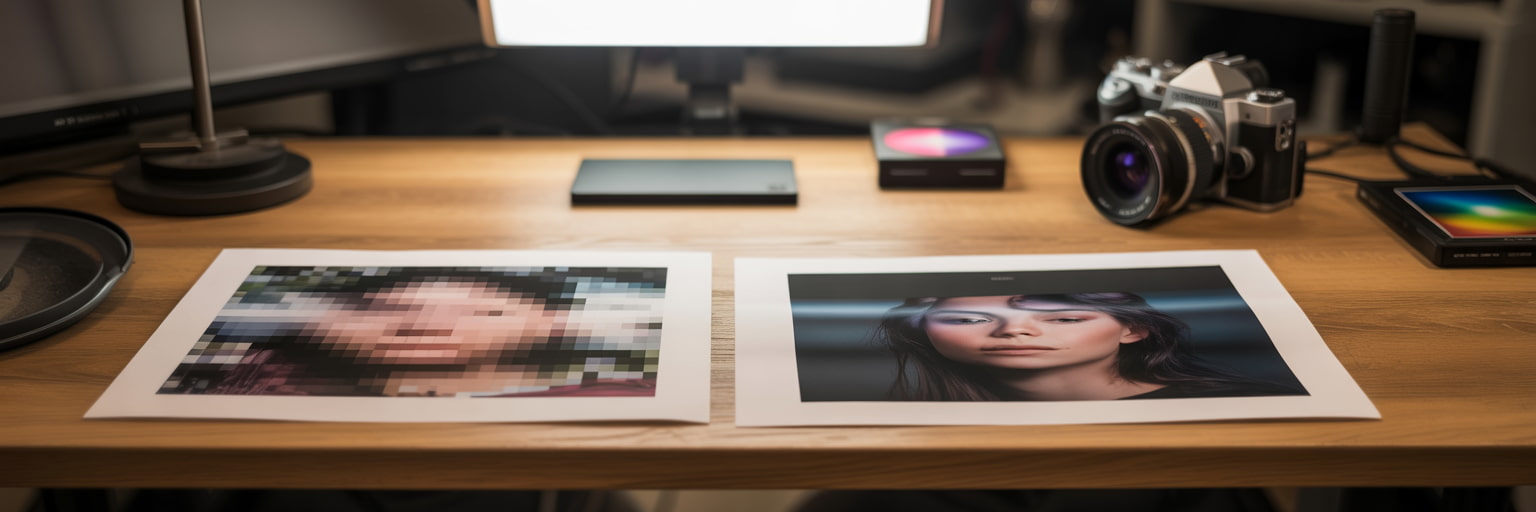
That means an image can look crisp on your laptop but appear blurry or pixelated when it's printed bigger. If you're creating artwork for a roller banner, stretch fabric stand or poster, resolution becomes even more important.
Colour can also catch people out. AI creates artwork in RGB, which is perfect for screens. Printing uses CMYK instead, so some colours can look a little different once they're on paper, often darker.
Text is another common issue. AI is getting better all the time, but it can still create misspelt words, odd-looking letters or text that isn't quite readable. A good tip is to use AI to create the artwork, then add your text afterwards in software like Canva, Photoshop or Illustrator.
Start With a Better Prompt
The better your prompt, the better your artwork.
Instead of asking AI to "create a sticker", tell it exactly what you want the finished design to look like.
Poor prompt
"Create a sticker for a coffee company."
Better prompt
"Design a flat circular sticker for a premium coffee brand using cream and dark green colours with an illustrated coffee bean. Leave space for text instead of generating it. Use solid colours with no background, shadows, mockups or textures."
You'll notice this prompt tells the AI to create artwork, not a photograph of a sticker. It also avoids some of the things that can make artwork harder to print.
Use AI to Improve Your Prompts
One of the easiest ways to write better prompts is to ask AI for help.
If you've seen a design you like, upload it to ChatGPT and ask it to describe the style or write a prompt that would create something similar. It's a great way to learn what details make a difference and improve your prompts over time.
Tell AI What You Don't Want
Sometimes telling AI what to leave out is just as important as telling it what to include.
Try adding instructions like:
- No mockup
- No background
- No shadows
- No perspective
- No text
- No watermark
- No blur
- No texture
- No thin text or fine lettering
These simple additions can help create cleaner artwork that's much easier to print.
Keep Improving the Design
Don't expect the first result to be perfect.
The best AI artwork usually comes after a few rounds of refining. Ask ChatGPT to simplify the design, make the colours stronger, add more white space or remove anything that feels unnecessary.
Think of AI as a creative assistant rather than expecting it to get everything right first time.
Is AI Image Generation Better for Screen or Print?
ChatGPT is brilliant for creating ideas, illustrations and artwork, but it still needs a little help before going to print.
For social media, websites and presentations, the images it creates are often ready to use straight away.
For print, especially larger products, you'll usually want to improve the resolution, check the colours and replace any AI-generated text before sending it to print.
Do that, and ChatGPT becomes a fantastic tool for creating artwork for everything from stickers and flyers to posters and packaging.
Using Canva AI to Finish Your Artwork
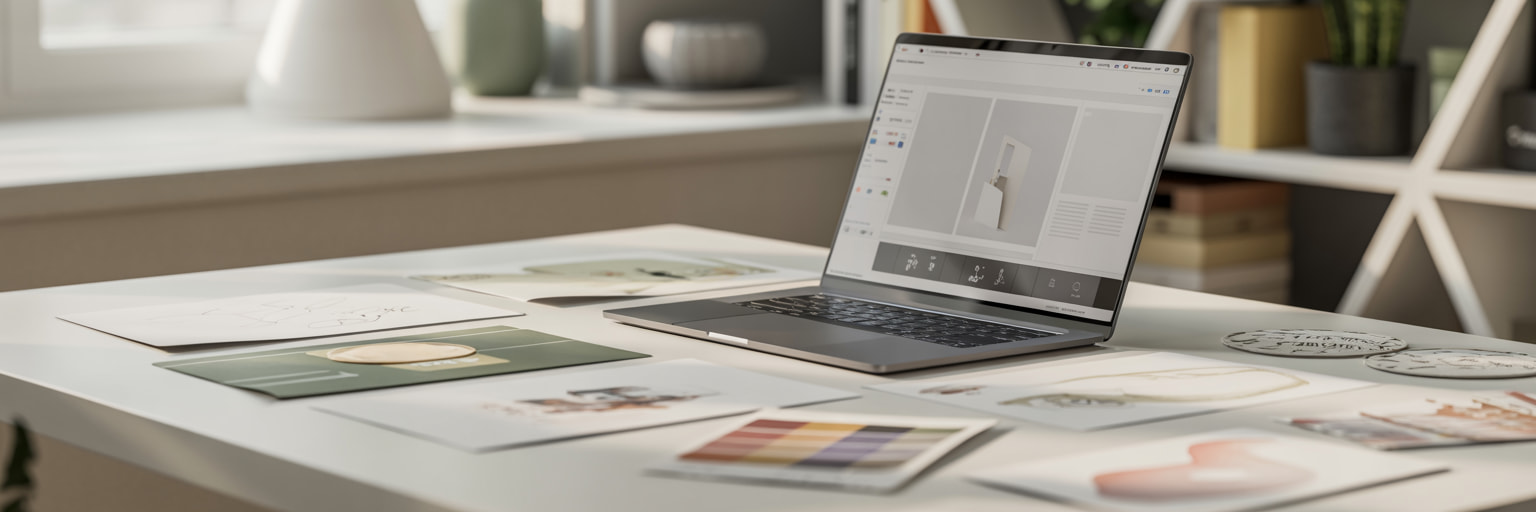
If you're already using Canva, you don't need to switch between lots of different tools. Canva's AI features make it easy to edit, improve and prepare your artwork before printing.
Some of the most useful AI tools include:
Magic Design
Describe what you want to create, or upload an image, and Magic Design will generate ready-made layouts for posters, flyers, presentations, social media posts and more. It's a great starting point if you're staring at a blank page.
Layout & Style Matching
Need your design in a different size? Canva can automatically resize it for different products while keeping everything looking consistent. It can also generate new graphics that match your existing fonts, colours and branding, making it easier to keep everything on-brand.
3D Content & Shapes
Canva can create custom 3D graphics and shapes from a simple text prompt. They're ideal for adding a bit more depth and personality to posters, flyers or social media graphics without having to create them from scratch.
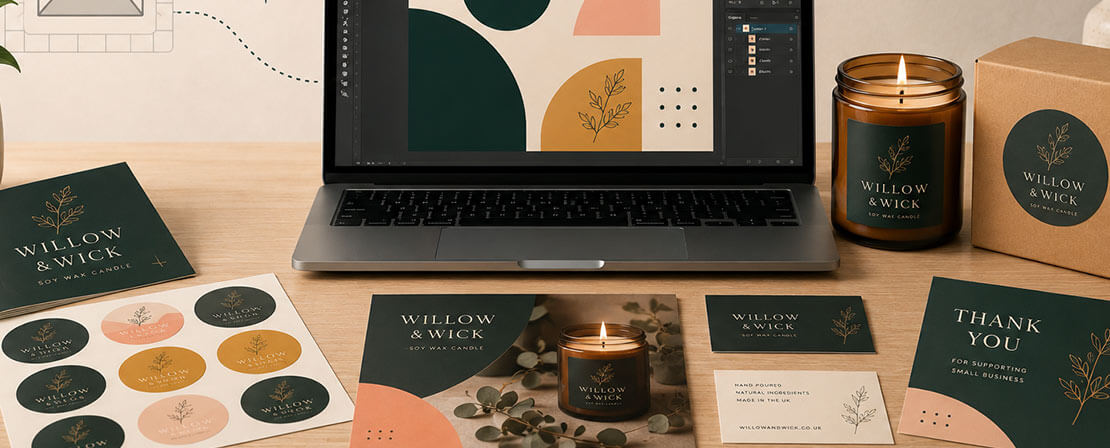
One of Canva's biggest strengths is that it combines AI with an easy-to-use design editor. That means you can generate an image with ChatGPT, then upload it to Canva to add your branding, tidy up the layout or prepare versions for different products.
Just like any AI-generated artwork, it's still worth checking the resolution before printing. If you're creating something large, like a roller banner or exhibition display, you may need to upscale the image first to make sure it stays sharp.
At instantprint, we often recommend using AI tools for the creative part, then finishing your artwork in Canva or another design programme before sending it to print. It's a simple workflow that gives you more control over the final result.
How to Improve AI Image Resolution
Low resolution is one of the biggest reasons AI artwork doesn't print as well as people expect.
If your image isn't large enough, AI upscaling tools can increase the resolution while keeping the artwork looking sharp.
Some popular options include:
- ChatGPT
Included with your plan
Creating and editing artwork - Upscayl
Free
Basic image upscaling - Photoshop Super Resolution
Adobe subscription
Improving existing images - Topaz Gigapixel
Premium
Professional print quality - Magnific AI
Premium
High-quality image enhancement - Krea AI
Free/Paid
instantprint's Resolution Enhancer
Don't have time to use a separate AI upscaling tool? We've got you covered.
During the proofing stage, you'll have the option to use our AI-powered Resolution Enhancer with a single click. It intelligently increases the resolution of your artwork, helping to improve sharpness before it goes to print.
It's a quick and easy way to give lower-resolution images a helping hand, especially if you've created your artwork using AI.
Because AI-generated images are usually flattened into a single image, the Resolution Enhancer can't edit individual parts of your design. While it can improve overall sharpness, it may not always produce the result you're expecting. We always recommend reviewing your enhanced artwork carefully before approving it for print to make sure you're happy with the final result.
It also won't fix blurry text, spelling mistakes or other design issues, so it's worth making those changes before placing your order.
Improving AI artwork
It's usually best to upscale your image once you're happy with the final design.
Preparing AI Artwork for Print
Before uploading your artwork, it's worth spending a couple of minutes checking everything looks right.
Make Sure the Resolution Is High Enough
For the sharpest results, aim for 300 DPI at the size you want to print.
Convert RGB to CMYK
AI-generated artwork is usually created in RGB, which is designed for screens. At instantprint, we'll convert your artwork to CMYK for printing, but some colours may look different once they're on paper. Bright blues, greens and fluorescent shades are often the most noticeable and may print slightly darker or less vibrant than they appear on screen.
For the best results, convert your artwork to CMYK yourself before uploading it, so you can check how the colours will look before it's printed.
Replace AI Text
If your artwork includes text, it's worth replacing it yourself. You'll get cleaner, sharper lettering and complete control over the wording.
Zoom In
Zoom in up to 400% and take a close look at your artwork before uploading it.
Check for:
- Blurry edges
- Strange marks
- Missing details
- Colour issues
- Spelling mistakes
A quick check now can save a disappointing print later.
Common AI Mistakes We See Before Printing
Some problems appear time and time again when people send AI artwork to print.
The most common ones are:
- Low-resolution images
- Blurry edges
- Misspelt text
- Random marks or glitches
- Artwork cropped too tightly
- Files still in RGB
- No bleed added
Most of these only take a few minutes to fix before placing your order.
Final Tips for Better AI Print Artwork
- Spend a little longer writing your prompt.
- Generate a few versions before choosing your favourite.
- Use an AI upscaling tool if your image is too small.
- Replace AI-generated text with your own.
- Convert your artwork to CMYK before printing.
- Zoom in and check everything carefully.
- Ask ChatGPT to review your design before ordering.
AI has opened up exciting new ways to create artwork, and with a few extra steps, it can work brilliantly for print too. Whether you're creating stickers, flyers or a large-format poster, a little preparation goes a long way.
And when you're happy with your design, instantprint is here to help you turn it into high-quality print that's ready to make an impression.